PySide6 기본 정리: QWidget, Layout, StyleSheet 이해하기
PySide6로 데스크톱 GUI 프로그램을 만들 때 가장 먼저 만나게 되는 개념은 QWidget, Layout, StyleSheet다.
처음에는 버튼, 라벨, 입력창을 화면에 올리는 것만 생각하기 쉽다. 하지만 조금만 기능이 늘어나면 “이 위젯을 어디에 배치할지”, “화면 크기가 바뀌어도 자연스럽게 정렬되게 할지”, “버튼과 테이블의 디자인을 어떻게 통일할지”를 함께 고민하게 된다.
이 글에서는 PySide6를 처음 보는 사람도 이해할 수 있도록 다음 세 가지를 중심으로 정리한다.
QWidget이 무엇인지- 화면 배치를
Layout으로 어떻게 구성하는지 - CSS처럼 보이는
StyleSheet를 어떻게 적용하는지
1. PySide6에서 QWidget이란?
QWidget은 PySide6 화면 구성의 가장 기본이 되는 클래스다.
간단히 말하면, 화면에 보이는 대부분의 UI 요소는 QWidget이거나 QWidget을 상속한 클래스라고 볼 수 있다.
예를 들어 다음과 같은 것들이 모두 QWidget 계열이다.
QMainWindowQLabelQPushButtonQLineEditQTextEditQComboBoxQTableWidgetQGroupBoxQFrame
즉, 우리가 화면에서 보는 버튼, 글자, 입력창, 테이블, 박스 영역은 대부분 위젯이라고 생각하면 된다.
from PySide6.QtWidgets import QApplication, QWidget

app = QApplication([])

window = QWidget()
window.setWindowTitle("첫 번째 PySide6 창")
window.resize(400, 300)
window.show()

app.exec()
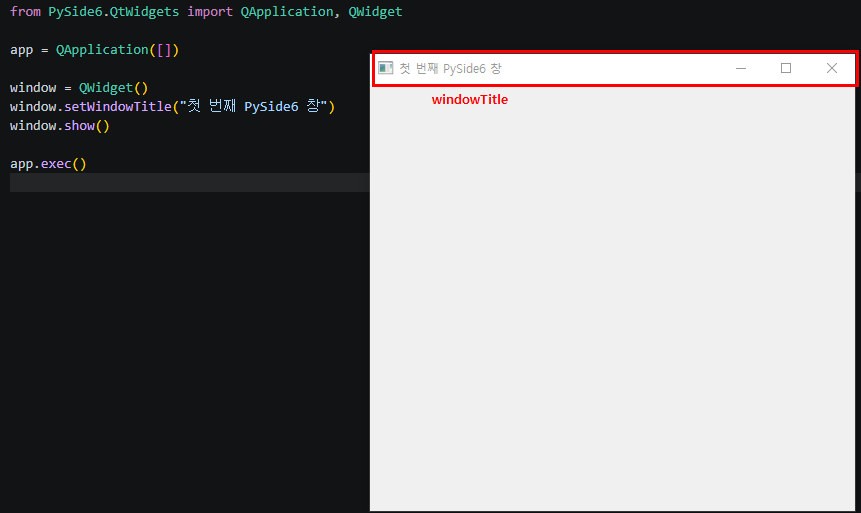
위 코드는 가장 기본적인 PySide6 창을 띄우는 코드다.
여기서 QWidget()으로 만든 window는 하나의 빈 창이다. 아직 버튼도 없고, 텍스트도 없고, 입력창도 없다. 하지만 이 창 역시 하나의 위젯이다.
2. QMainWindow와 QWidget의 차이
PySide6에서 메인 화면을 만들 때는 보통 QWidget 또는 QMainWindow를 사용한다.
둘 다 화면을 만들 수 있지만, 역할에 차이가 있다.
| 구분 | 설명 |
|---|---|
QWidget |
가장 기본적인 화면 또는 독립 위젯 |
QMainWindow |
메뉴바, 툴바, 상태바, 중앙 영역을 갖는 메인 윈도우용 클래스 |
작은 프로그램이나 간단한 설정 창은 QWidget만으로도 충분하다.
하지만 메뉴바, 툴바, 상태바, 중앙 화면 영역을 갖는 일반적인 데스크톱 앱을 만들고 싶다면 QMainWindow를 사용하는 것이 자연스럽다.
QMainWindow를 사용할 때 중요한 점은, 직접 레이아웃을 설정하는 것이 아니라 중앙 위젯을 하나 만들고 그 위젯에 레이아웃을 적용한 뒤 setCentralWidget()으로 넣어야 한다는 것이다.
from PySide6.QtWidgets import QApplication, QMainWindow, QWidget, QVBoxLayout, QLabel

class MainWindow(QMainWindow):
    def __init__(self):
        super().__init__()

        self.setWindowTitle("QMainWindow 예제")
        self.resize(600, 400)

        central_widget = QWidget()
        layout = QVBoxLayout(central_widget)

        title_label = QLabel("메인 화면입니다.")
        layout.addWidget(title_label)

        self.setCentralWidget(central_widget)

app = QApplication([])

window = MainWindow()
window.show()

app.exec()
위 코드에서 핵심은 이 부분이다.
central_widget = QWidget()
layout = QVBoxLayout(central_widget)

self.setCentralWidget(central_widget)
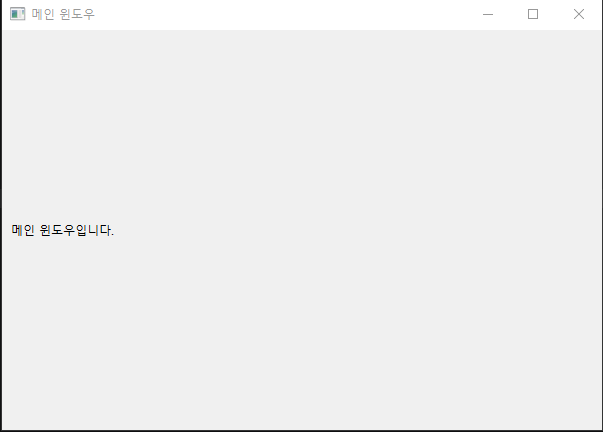
QMainWindow 자체에 바로 setLayout()을 하는 것이 아니라, 중앙에 들어갈 QWidget을 만들고 그 안에 레이아웃을 구성한다.
3. Layout이 필요한 이유
PySide6에서 화면에 위젯을 배치하는 방법은 크게 두 가지다.
첫 번째는 좌표를 직접 지정하는 방식이다.
button.move(20, 30)두 번째는 레이아웃을 사용하는 방식이다.
layout.addWidget(button)처음에는 move()로 직접 위치를 지정하는 것이 쉬워 보일 수 있다. 하지만 실제 프로그램에서는 거의 레이아웃을 사용하는 것이 좋다.
그 이유는 다음과 같다.
- 창 크기가 바뀌어도 위젯이 자연스럽게 조정된다.
- 버튼, 입력창, 테이블 간 간격을 관리하기 쉽다.
- 화면 구조를 코드로 읽기 쉬워진다.
- OS나 해상도에 따른 UI 깨짐을 줄일 수 있다.
- 나중에 위젯을 추가하거나 제거하기 쉽다.
좌표 기반 배치는 화면이 고정되어 있을 때는 괜찮아 보인다. 하지만 창 크기가 바뀌거나, 텍스트 길이가 달라지거나, 다른 해상도에서 실행되면 UI가 쉽게 깨질 수 있다.
그래서 PySide6에서는 보통 QVBoxLayout, QHBoxLayout, QGridLayout 등을 사용해 화면을 구성한다.
4. 자주 사용하는 Layout 종류
QVBoxLayout
QVBoxLayout은 위젯을 위에서 아래로 세로 방향으로 배치한다.
from PySide6.QtWidgets import QWidget, QVBoxLayout, QPushButton

widget = QWidget()
layout = QVBoxLayout(widget)

layout.addWidget(QPushButton("첫 번째 버튼"))
layout.addWidget(QPushButton("두 번째 버튼"))
layout.addWidget(QPushButton("세 번째 버튼"))
화면은 다음과 같은 구조가 된다.
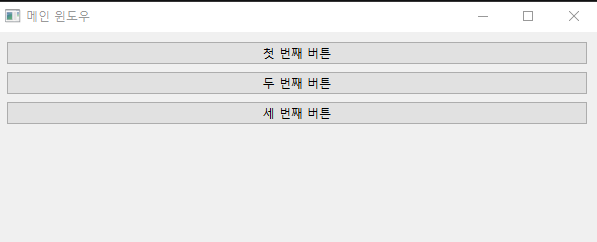
세로로 쌓이는 구조이기 때문에, 메인 화면 전체 구성에 자주 사용된다.
예를 들어 다음과 같은 화면은 QVBoxLayout으로 구성하기 좋다.
[제목 영역]
[파일 선택 영역]
[테이블 영역]
[버튼 영역]
QHBoxLayout
QHBoxLayout은 위젯을 왼쪽에서 오른쪽으로 가로 방향으로 배치한다.
from PySide6.QtWidgets import QWidget, QHBoxLayout, QPushButton

widget = QWidget()
layout = QHBoxLayout(widget)

layout.addWidget(QPushButton("불러오기"))
layout.addWidget(QPushButton("저장하기"))
layout.addWidget(QPushButton("초기화"))
화면은 다음과 같은 구조가 된다.
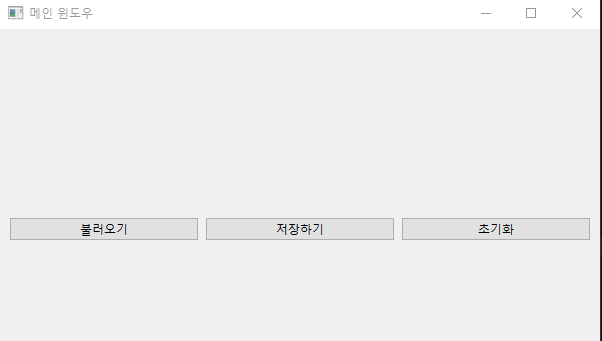
버튼을 한 줄로 나란히 배치하거나, 라벨과 입력창을 한 줄에 놓을 때 자주 사용한다.
예를 들어 다음과 같은 구조에 적합하다.
[파일 경로:] [입력창] [찾아보기 버튼]
from PySide6.QtWidgets import QApplication, QWidget,QMainWindow, QVBoxLayout,QLabel, QPushButton , QHBoxLayout,QLineEdit

app = QApplication([])


class MainWindow(QMainWindow):
    def __init__(self):
        super().__init__()
        self.setWindowTitle("메인 윈도우")
        self.resize(600,400)

        window = QWidget()
        window.setWindowTitle("파일 선택 예제")

        layout = QHBoxLayout(window)
        file_label = QLabel("파일 경로:")
        file_input = QLineEdit()
        browse_button = QPushButton("찾아보기")

        layout.addWidget(file_label)
        layout.addWidget(file_input)
        layout.addWidget(browse_button)

        window.show()
        app.exec()


window = MainWindow()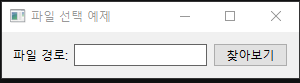
QGridLayout
QGridLayout은 화면을 행과 열로 나누어 위젯을 배치한다.
from PySide6.QtWidgets import QWidget, QGridLayout, QLabel, QLineEdit

class MainWindow(QWidget):
    def __init__(self):
        super().__init__()
        self.setWindowTitle("메인 윈도우")
        self.resize(600, 400)
        layout = QGridLayout()
        layout.addWidget(QLabel("이름"), 0, 0)
        layout.addWidget(QLineEdit(), 0, 1)
        layout.addWidget(QLabel("이메일"), 1, 0)
        layout.addWidget(QLineEdit(), 1, 1)
        self.setLayout(layout)

app = QApplication([])

window = MainWindow()
window.show()
app.exec()
화면은 다음과 같은 구조가 된다.
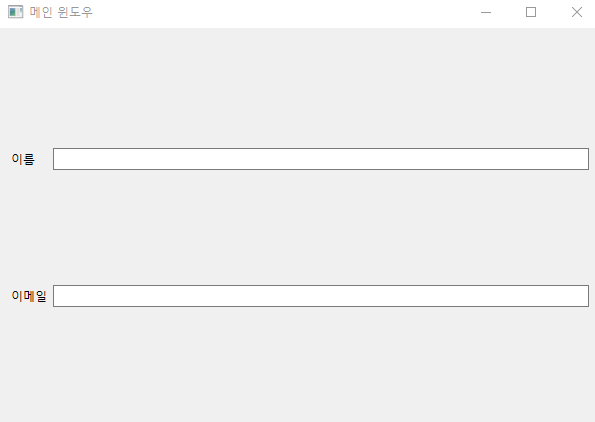
QGridLayout은 설정 화면, 입력 폼, 매핑 화면처럼 라벨과 입력값이 반복되는 구조에 적합하다.
QFormLayout
QFormLayout은 라벨과 입력 위젯이 한 쌍으로 반복되는 폼 화면에 적합하다.
from PySide6.QtWidgets import QWidget, QFormLayout, QLineEdit

class MainWindow(QWidget):
    def __init__(self):
        super().__init__()
        self.setWindowTitle("메인 윈도우")
        self.resize(600, 400)
        widget = QWidget()
        layout = QFormLayout(widget)
        layout.addRow("이름", QLineEdit())
        layout.addRow("이메일", QLineEdit())
        layout.addRow("전화번호", QLineEdit())
        self.setLayout(layout)


app = QApplication([])

window = MainWindow()
window.show()
app.exec()
화면은 다음과 같이 구성된다.
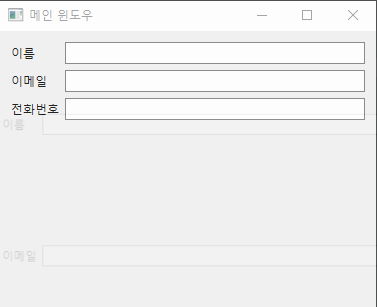
QGridLayout으로도 만들 수 있지만, 라벨과 입력창이 반복되는 구조라면 QFormLayout이 더 간단하다.
5. 화면을 영역별로 나누는 방식
처음 PySide6 화면을 만들 때 가장 어려운 점은 “어디부터 레이아웃을 잡아야 하는가”이다.
이럴 때는 화면을 큰 영역부터 나누면 쉽다.
예를 들어 Excel 파일을 불러오고, 데이터를 매핑하고, 결과를 저장하는 프로그램이라면 화면을 이렇게 나눌 수 있다.
전체 화면
├── 상단 제목 영역
├── 파일 선택 영역
├── 헤더 선택 영역
├── 매핑 설정 영역
├── 결과 테이블 영역
└── 하단 버튼 영역
이 구조를 PySide6 레이아웃으로 바꾸면 다음과 같다.
QMainWindow
└── central_widget: QWidget
    └── main_layout: QVBoxLayout
        ├── title_area
        ├── file_area
        ├── header_area
        ├── mapping_area
        ├── result_table
        └── button_area
전체 화면은 세로로 쌓이는 구조이므로 QVBoxLayout을 사용한다.
각 영역 안에서는 필요에 따라 QHBoxLayout, QGridLayout, QFormLayout을 섞어서 사용한다.
6. 예시: 화면 전체 구조 잡기
다음은 PySide6에서 기본적인 화면 구조를 잡는 예시다.
from PySide6.QtWidgets import ( QApplication, QMainWindow, QWidget, QVBoxLayout, QHBoxLayout, QLabel, QPushButton, QComboBox, QTableWidget, QGroupBox, )
class MainWindow(QMainWindow):
    def __init__(self):
        super().__init__()
        self.setWindowTitle("레이아웃 구조 학습 예제")
        self.resize(1000, 700)
        central_widget = QWidget()
        main_layout = QVBoxLayout(central_widget)
        title_label = QLabel("① 제목 영역 (QVBoxLayout)")
        title_label.setObjectName("titleLabel")
        main_layout.addWidget(title_label)
        file_group = self.create_file_area()
        header_group = self.create_header_area()
        table = self.create_result_table()
        button_area = self.create_button_area()
        main_layout.addWidget(file_group)
        main_layout.addWidget(header_group)
        main_layout.addWidget(table)
        main_layout.addLayout(button_area)
        self.setCentralWidget(central_widget)

    def create_file_area(self):
        group = QGroupBox("② 파일 영역 (QHBoxLayout)")
        layout = QHBoxLayout(group)
        self.file_label = QLabel("왼쪽 라벨 위치")
        self.file_button = QPushButton("오른쪽 버튼 위치")
        layout.addWidget(self.file_label)
        layout.addWidget(self.file_button)
        return group
    def create_header_area(self):
        group = QGroupBox("③ 헤더 영역 (QHBoxLayout)")
        layout = QHBoxLayout(group)
        self.sheet_combo = QComboBox()
        self.sheet_combo.addItems(["콤보박스 위치 예시"])
        self.header_button = QPushButton("버튼 위치")
        layout.addWidget(QLabel("왼쪽 라벨"))
        layout.addWidget(self.sheet_combo)
        layout.addWidget(self.header_button)
        return group

    def create_result_table(self):
        table = QTableWidget()
        table.setObjectName("resultTable")
        table.setColumnCount(1)
        table.setRowCount(3)
        table.setHorizontalHeaderLabels(["④ 테이블 영역 (가장 넓게 차지)"])
        for row in range(3):
            table.setItem(row, 0, None)
        return table

    def create_button_area(self):
        layout = QHBoxLayout()
        self.save_button = QPushButton("오른쪽 정렬 버튼 1")
        self.reset_button = QPushButton("오른쪽 정렬 버튼 2")
        layout.addStretch()
        layout.addWidget(self.save_button)
        layout.addWidget(self.reset_button)
        return layout

app = QApplication([])
window = MainWindow()
window.show()
app.exec()
이 예제에서 중요한 점은 화면을 한 번에 전부 만들지 않고, 영역별 메서드로 나눴다는 것이다.
file_group = self.create_file_area()
header_group = self.create_header_area()
table = self.create_result_table()
button_area = self.create_button_area()
이렇게 나누면 __init__() 안이 너무 길어지는 것을 막을 수 있다.
또한 나중에 파일 선택 영역만 수정하고 싶을 때 create_file_area()만 보면 되므로 코드 읽기가 쉬워진다.
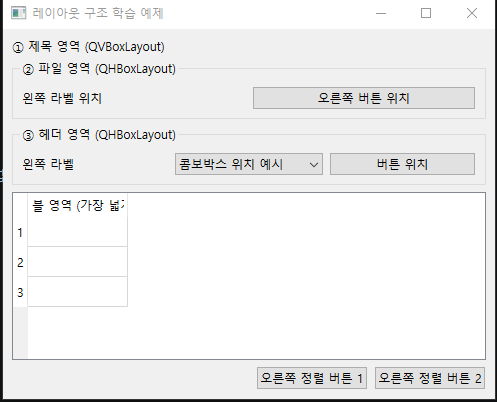
7. Layout 안에 Layout 넣기
PySide6에서는 레이아웃 안에 다른 레이아웃을 넣을 수 있다.
예를 들어 전체 화면은 세로 구조지만, 하단 버튼들은 가로로 나열하고 싶을 수 있다.
  def create_button_area(self):
        layout = QHBoxLayout()
        self.save_button = QPushButton("오른쪽 정렬 버튼 1")
        self.reset_button = QPushButton("오른쪽 정렬 버튼 2")
        layout.addStretch()
        layout.addWidget(self.save_button)
        layout.addWidget(self.reset_button)
        return layout
구조는 다음과 같다.
main_layout: QVBoxLayout
├── 위젯
├── 위젯
└── button_layout: QHBoxLayout
    ├── stretch
    ├── 저장 버튼
└── 닫기 버튼addStretch()는 빈 공간을 밀어주는 역할을 한다.
위 예시에서는 버튼들이 오른쪽으로 정렬된다.
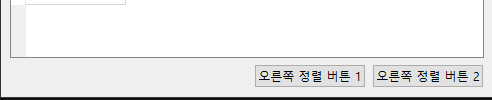
만약 addStretch()를 버튼 뒤에 넣으면 버튼들이 왼쪽으로 정렬된다.
def create_button_area(self):
        layout = QHBoxLayout()
        self.save_button = QPushButton("왼쪽 정렬 버튼 1")
        self.reset_button = QPushButton("왼쪽 정렬 버튼 2")

        layout.addWidget(self.save_button)
        layout.addWidget(self.reset_button)
        layout.addStretch()
        return layout
화면은 이렇게 된다.

8. QGroupBox로 영역 구분하기
화면에 기능이 많아지면 위젯들이 복잡하게 보일 수 있다.
이때 QGroupBox를 사용하면 관련 있는 위젯들을 하나의 영역으로 묶을 수 있다.
group = QGroupBox("파일 선택")
layout = QHBoxLayout(group)

layout.addWidget(QLabel("파일 경로"))
layout.addWidget(QPushButton("불러오기"))
화면에서는 “파일 선택”이라는 제목을 가진 박스 영역으로 표시된다.
이런 영역 구분은 특히 다음과 같은 프로그램에서 유용하다.
- 파일 선택 영역
- 매핑 설정 영역
- 좌표 검증 영역
- 결과 미리보기 영역
- 저장 옵션 영역
예를 들어 전체 구조는 이렇게 잡을 수 있다.
[파일 선택]
  선택된 파일명       [파일 불러오기]

[헤더 행 선택]
  시트 선택          [헤더 적용]

[매핑 설정]
  원본 컬럼           Darwin Core 필드

[결과 미리보기]
  테이블

[저장]
                         [Excel 저장]
9. StyleSheet란?
PySide6에서는 위젯의 모양을 꾸밀 때 setStyleSheet()를 사용할 수 있다.
문법은 CSS와 비슷하다.
button.setStyleSheet("""
    QPushButton {
        background-color: #2563eb;
        color: white;
        border-radius: 6px;
        padding: 8px 12px;
    }

    QPushButton:hover {
        background-color: #1d4ed8;
    }
""")
HTML/CSS를 사용해본 적이 있다면 익숙하게 느껴질 수 있다.
다만 PySide6의 StyleSheet는 웹 CSS와 완전히 같지는 않다. Qt 위젯에 맞게 지원되는 속성과 선택자가 따로 있다.
10. StyleSheet 적용 방식
StyleSheet는 크게 세 가지 방식으로 적용할 수 있다.
1. 개별 위젯에 직접 적용
button = QPushButton("저장")
button.setStyleSheet("""
    background-color: #2563eb;
    color: white;
""")
가장 간단하지만, 위젯이 많아지면 같은 스타일을 반복해서 작성하게 된다.
2. 부모 위젯 또는 MainWindow에 한 번에 적용
self.setStyleSheet("""
    QPushButton {
        background-color: #2563eb;
        color: white;
        border-radius: 6px;
        padding: 8px 12px;
    }

    QLabel {
        color: #111827;
    }
""")
이렇게 하면 해당 창 안에 있는 모든 QPushButton, QLabel에 스타일이 적용된다.
프로그램 전체 스타일을 통일하고 싶을 때 좋다.
3. objectName을 이용해 특정 위젯만 적용
특정 위젯에만 스타일을 주고 싶다면 setObjectName()을 사용할 수 있다.
title_label = QLabel("GBIF Darwin Core Mapper")
title_label.setObjectName("titleLabel")
그리고 StyleSheet에서 #titleLabel로 선택한다.
self.setStyleSheet("""
    #titleLabel {
        font-size: 24px;
        font-weight: bold;
        color: #111827;
    }
""")
웹 CSS에서 id 선택자를 사용하는 것과 비슷하다.
11. 기본 StyleSheet 예시
다음은 PySide6 프로그램에서 사용할 수 있는 기본 스타일 예시다.
self.setStyleSheet("""
    QMainWindow {
        background-color: #f8fafc;
    }

    QWidget {
        font-family: "Malgun Gothic";
        font-size: 13px;
        color: #111827;
    }

    QGroupBox {
        border: 1px solid #d1d5db;
        border-radius: 8px;
        margin-top: 12px;
        padding: 12px;
        background-color: #ffffff;
        font-weight: bold;
    }

    QGroupBox::title {
        subcontrol-origin: margin;
        subcontrol-position: top left;
        padding: 0 6px;
        color: #374151;
    }

    QPushButton {
        background-color: #2563eb;
        color: white;
        border: none;
        border-radius: 6px;
        padding: 8px 12px;
        font-weight: bold;
    }

    QPushButton:hover {
        background-color: #1d4ed8;
    }

    QPushButton:pressed {
        background-color: #1e40af;
    }

    QPushButton:disabled {
        background-color: #9ca3af;
        color: #f3f4f6;
    }

    QLineEdit, QComboBox {
        border: 1px solid #d1d5db;
        border-radius: 6px;
        padding: 6px;
        background-color: #ffffff;
    }

    QLineEdit:focus, QComboBox:focus {
        border: 1px solid #2563eb;
    }

    QTableWidget {
        background-color: #ffffff;
        gridline-color: #e5e7eb;
        border: 1px solid #d1d5db;
        selection-background-color: #dbeafe;
        selection-color: #111827;
    }

    QHeaderView::section {
        background-color: #f3f4f6;
        color: #374151;
        padding: 6px;
        border: 1px solid #e5e7eb;
        font-weight: bold;
    }
""")
이 스타일은 다음과 같은 기준으로 잡았다.
- 전체 배경은 연한 회색
- 기능 영역은 흰색 카드처럼 보이게 구성
- 버튼은 파란색 계열로 통일
- 입력창과 콤보박스는 둥근 테두리
- 테이블 헤더는 회색 배경으로 구분
- 선택된 테이블 셀은 연한 파란색으로 표시
이렇게 기본 스타일을 잡아두면 프로그램이 훨씬 정돈되어 보인다.
12. StyleSheet를 함수로 분리하기
StyleSheet가 길어지면 __init__() 안에 직접 넣기보다 함수로 분리하는 것이 좋다.
class MainWindow(QMainWindow):
    def __init__(self):
        super().__init__()

        self.init_ui()
        self.apply_styles()

    def apply_styles(self):
        self.setStyleSheet("""
            QMainWindow {
                background-color: #f8fafc;
            }

            QPushButton {
                background-color: #2563eb;
                color: white;
                border-radius: 6px;
                padding: 8px 12px;
            }
        """)
더 커지면 별도 파일로 분리할 수도 있다.
app/
  ui/
    main_window.py
styles.pystyles.py에는 문자열 상수로 스타일을 둘 수 있다.
APP_STYLE = """
QMainWindow {
    background-color: #f8fafc;
}

QPushButton {
    background-color: #2563eb;
    color: white;
    border-radius: 6px;
    padding: 8px 12px;
}
"""
그리고 main_window.py에서 불러온다.
from app.ui.styles import APP_STYLE

self.setStyleSheet(APP_STYLE)
이렇게 하면 화면 구성 코드와 스타일 코드가 분리되어 읽기 쉬워진다.
13. Layout과 StyleSheet를 함께 생각하기
처음에는 Layout과 StyleSheet를 따로 생각하기 쉽다.
하지만 실제로는 두 가지를 함께 봐야 한다.
Layout은 “어디에 놓을 것인가”를 결정한다.
StyleSheet는 “어떻게 보이게 할 것인가”를 결정한다.
예를 들어 다음과 같은 화면이 있다고 하자.
[파일 선택]
  선택된 파일이 없습니다.                    [파일 불러오기]
이 화면을 구성하려면 먼저 레이아웃을 잡아야 한다.
group = QGroupBox("파일 선택")
layout = QHBoxLayout(group)

file_label = QLabel("선택된 파일이 없습니다.")
file_button = QPushButton("파일 불러오기")

layout.addWidget(file_label)
layout.addStretch()
layout.addWidget(file_button)
그다음 StyleSheet로 모양을 잡는다.
self.setStyleSheet("""
    QGroupBox {
        border: 1px solid #d1d5db;
        border-radius: 8px;
        padding: 12px;
        background-color: white;
    }

    QPushButton {
        background-color: #2563eb;
        color: white;
        border-radius: 6px;
        padding: 8px 12px;
    }
""")
즉, 화면 개발 순서는 보통 이렇게 잡는 것이 좋다.
- 먼저 화면을 큰 영역으로 나눈다.
- 각 영역에 어떤 위젯이 들어갈지 정한다.
QVBoxLayout,QHBoxLayout,QGridLayout중 적절한 레이아웃을 고른다.- 위젯을 배치한다.
- 마지막에 StyleSheet로 디자인을 통일한다.
14. 실전 예시: 파일 업로드 화면 구성하기
다음은 파일 업로드 화면을 구성하는 간단한 예시다.
from PySide6.QtWidgets import (
    QApplication,
    QMainWindow,
    QWidget,
    QVBoxLayout,
    QHBoxLayout,
    QLabel,
    QPushButton,
    QGroupBox,
)

class MainWindow(QMainWindow):
    def __init__(self):
        super().__init__()

        self.setWindowTitle("파일 업로드 예제")
        self.resize(700, 300)

        central_widget = QWidget()
        main_layout = QVBoxLayout(central_widget)

        title_label = QLabel("Excel/CSV 파일 업로드")
        title_label.setObjectName("titleLabel")

        file_group = QGroupBox("파일 선택")
        file_layout = QHBoxLayout(file_group)

        file_label = QLabel("선택된 파일이 없습니다.")
        file_button = QPushButton("파일 불러오기")

        file_layout.addWidget(file_label)
        file_layout.addStretch()
        file_layout.addWidget(file_button)

        button_layout = QHBoxLayout()
        next_button = QPushButton("다음")
        cancel_button = QPushButton("취소")

        button_layout.addStretch()
        button_layout.addWidget(next_button)
        button_layout.addWidget(cancel_button)

        main_layout.addWidget(title_label)
        main_layout.addWidget(file_group)
        main_layout.addStretch()
        main_layout.addLayout(button_layout)

        self.setCentralWidget(central_widget)
        self.apply_styles()

    def apply_styles(self):
        self.setStyleSheet("""
            QMainWindow {
                background-color: #f8fafc;
            }

            QWidget {
                font-family: "Malgun Gothic";
                font-size: 13px;
                color: #111827;
            }

            #titleLabel {
                font-size: 22px;
                font-weight: bold;
                padding: 8px;
            }

            QGroupBox {
                border: 1px solid #d1d5db;
                border-radius: 8px;
                margin-top: 12px;
                padding: 12px;
                background-color: white;
                font-weight: bold;
            }

            QGroupBox::title {
                subcontrol-origin: margin;
                subcontrol-position: top left;
                padding: 0 6px;
            }

            QPushButton {
                background-color: #2563eb;
                color: white;
                border: none;
                border-radius: 6px;
                padding: 8px 12px;
                font-weight: bold;
            }

            QPushButton:hover {
                background-color: #1d4ed8;
            }
        """)

app = QApplication([])

window = MainWindow()
window.show()

app.exec()
이 예제는 다음 구조를 가진다.
QMainWindow
└── central_widget
    └── main_layout: QVBoxLayout
        ├── title_label
        ├── file_group: QGroupBox
        │   └── file_layout: QHBoxLayout
        │       ├── file_label
        │       ├── stretch
        │       └── file_button
        ├── stretch
        └── button_layout: QHBoxLayout
            ├── stretch
            ├── next_button
            └── cancel_button
이 구조를 이해하면 PySide6 화면 구성이 훨씬 쉬워진다.
15. 화면 구성할 때 자주 하는 실수
1. QMainWindow에 바로 setLayout()을 하는 경우
QMainWindow를 사용할 때는 직접 setLayout()을 하기보다 central_widget을 만들고 setCentralWidget()으로 넣는 방식이 자연스럽다.
central_widget = QWidget()
layout = QVBoxLayout(central_widget)

self.setCentralWidget(central_widget)
2. 좌표로 위치를 직접 지정하는 경우
처음에는 move()로 위치를 직접 지정하고 싶을 수 있다.
button.move(20, 30)하지만 유지보수와 화면 크기 대응을 생각하면 레이아웃을 쓰는 것이 좋다.
layout.addWidget(button)3. 스타일을 위젯마다 반복해서 적용하는 경우
버튼마다 같은 스타일을 반복해서 넣으면 나중에 수정하기 어렵다.
button1.setStyleSheet("background-color: blue;")
button2.setStyleSheet("background-color: blue;")
button3.setStyleSheet("background-color: blue;")
이보다는 부모 위젯이나 MainWindow에 한 번에 적용하는 것이 좋다.
self.setStyleSheet("""
    QPushButton {
        background-color: #2563eb;
        color: white;
    }
""")
4. 화면 구성 코드가 너무 길어지는 경우
모든 위젯 생성 코드를 __init__() 안에 넣으면 금방 읽기 어려워진다.
이럴 때는 영역별로 메서드를 나누면 좋다.
def create_file_area(self):
    ...

def create_mapping_area(self):
    ...

def create_result_table(self):
    ...

def create_button_area(self):
    ...
이렇게 나누면 화면 구조를 훨씬 쉽게 읽을 수 있다.
16. 정리
PySide6 화면을 만들 때는 세 가지를 먼저 이해하면 좋다.
첫째, QWidget은 화면에 표시되는 기본 단위다.
버튼, 라벨, 입력창, 테이블 같은 대부분의 UI 요소는 QWidget 계열이다.
둘째, Layout은 위젯의 위치와 크기를 관리한다.QVBoxLayout은 세로 배치, QHBoxLayout은 가로 배치, QGridLayout은 행과 열 배치, QFormLayout은 입력 폼 구성에 적합하다.
셋째, StyleSheet는 위젯의 디자인을 담당한다.
CSS와 비슷한 문법으로 버튼, 라벨, 테이블, 입력창 등의 색상, 여백, 테두리, 폰트 등을 지정할 수 있다.
처음 PySide6를 공부할 때는 코드를 바로 작성하기보다 화면을 먼저 구조로 나누는 습관을 들이는 것이 좋다.
예를 들어 다음처럼 생각한다.
이 화면은 세로로 큰 영역이 쌓이는 구조인가?
버튼들은 가로로 나란히 배치되는가?
입력 폼은 라벨과 입력창이 반복되는 구조인가?
테이블은 화면에서 가장 많은 공간을 차지해야 하는가?
이 질문에 답하면서 레이아웃을 잡고, 마지막에 StyleSheet로 디자인을 통일하면 PySide6 화면 구성이 훨씬 쉬워진다.
결국 핵심은 간단하다.
QWidget은 화면의 부품이고, Layout은 부품을 배치하는 방식이며, StyleSheet는 부품의 모양을 정하는 규칙이다.
이 세 가지를 구분해서 생각하면 PySide6 GUI 코드도 훨씬 읽기 쉬워진다.
'Data Engineering & Automation > Python 자동화' 카테고리의 다른 글
| PySide6로 이해하기 1편: QMainWindow와 화면 뼈대 잡기 (0) | 2026.06.05 |
|---|---|
| 돈 주고 QR 코드 만들지 마세요! 무료로 QR 코드 생성하기! (0) | 2026.05.28 |

댓글